Quick and Easy Rental Contracts
Experience unparalleled flexibility and efficiency with our hire software, which offers four versatile methods to create hire contracts.
Each method will bring you to the contract screen where you can add equipment, set hire dates, manage deliveries and collections, input costs, capture signatures, and upload images or videos of the equipment.
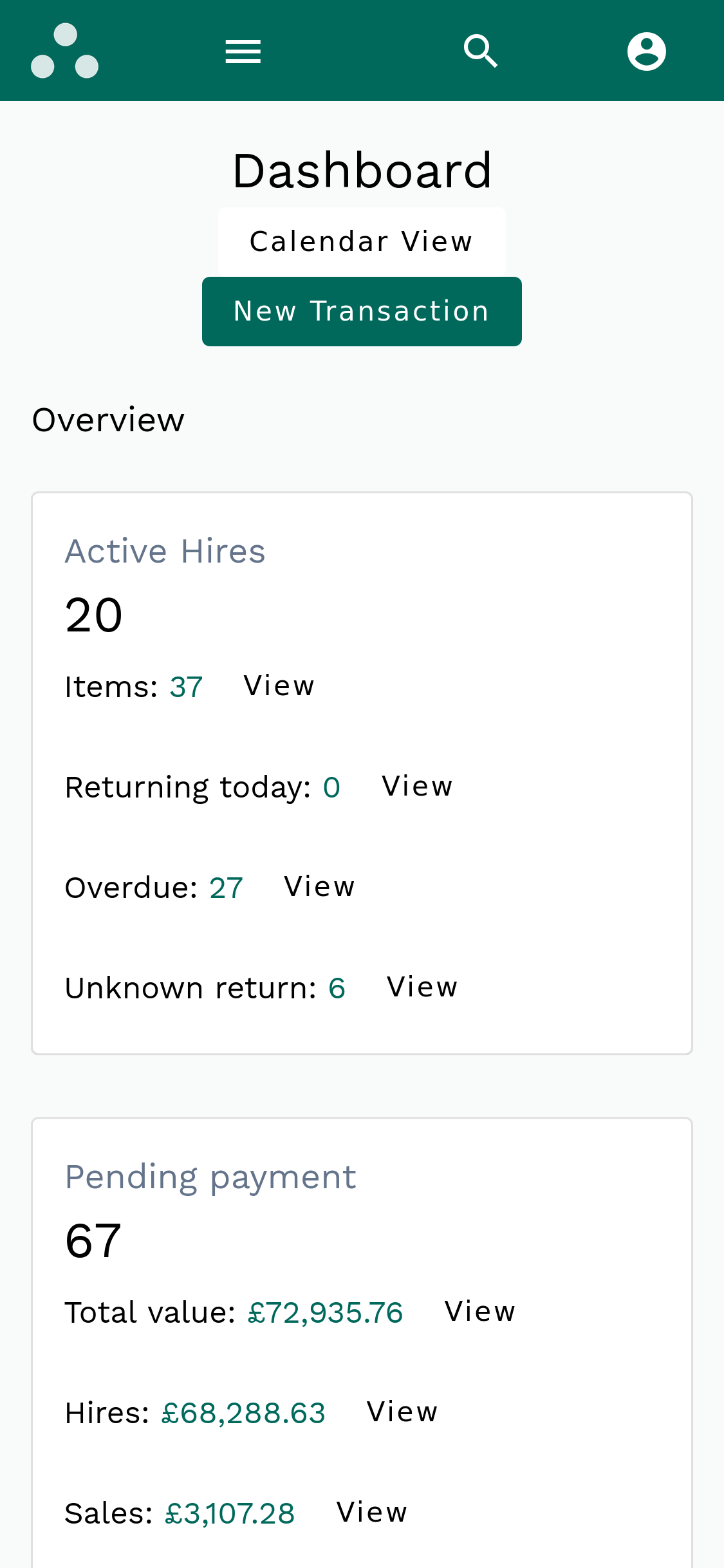
From the Dashboard
- The dashboard is the first screen you see when you log in, and will probably be the screen you spend most time on.
- Begin by clicking "New Transaction".
- Search for an existing customer or add a new one.
- Specify the transaction type of Hire, and press Create.
- Proceed to create a new contract by entering a purchase order number (optional), and pressing create.
From the Customer's Profile
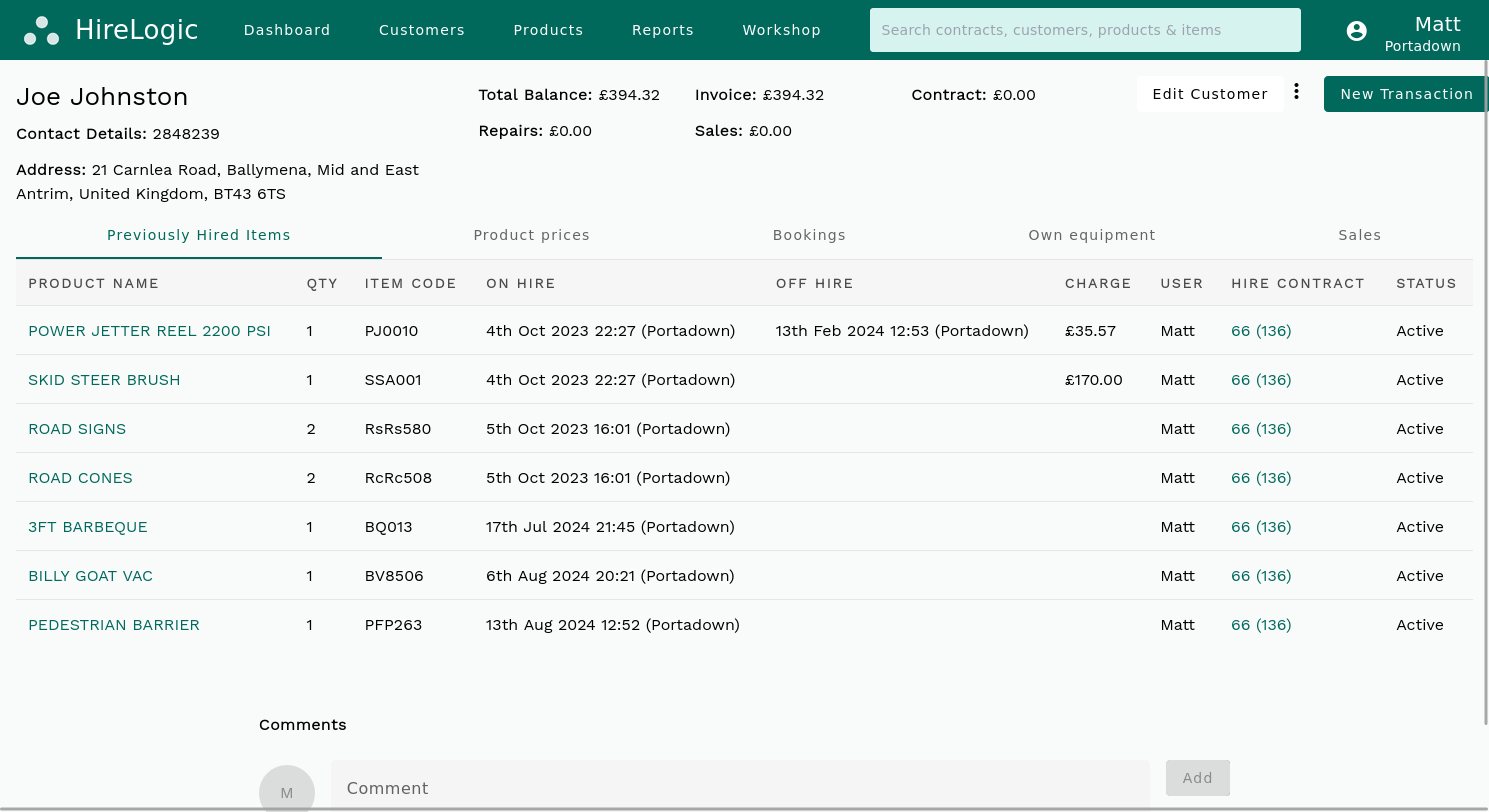
- The customer profile can be accessed from the global search bar, or by clicking on the customer name anywhere in the application, such as on hire contracts, on the dashboard.
- Click on "New Transaction" at the top right.
- Specify the transaction type of Hire, and press Create.
- This leads you to the contract screen.
From the Equipment's Profile
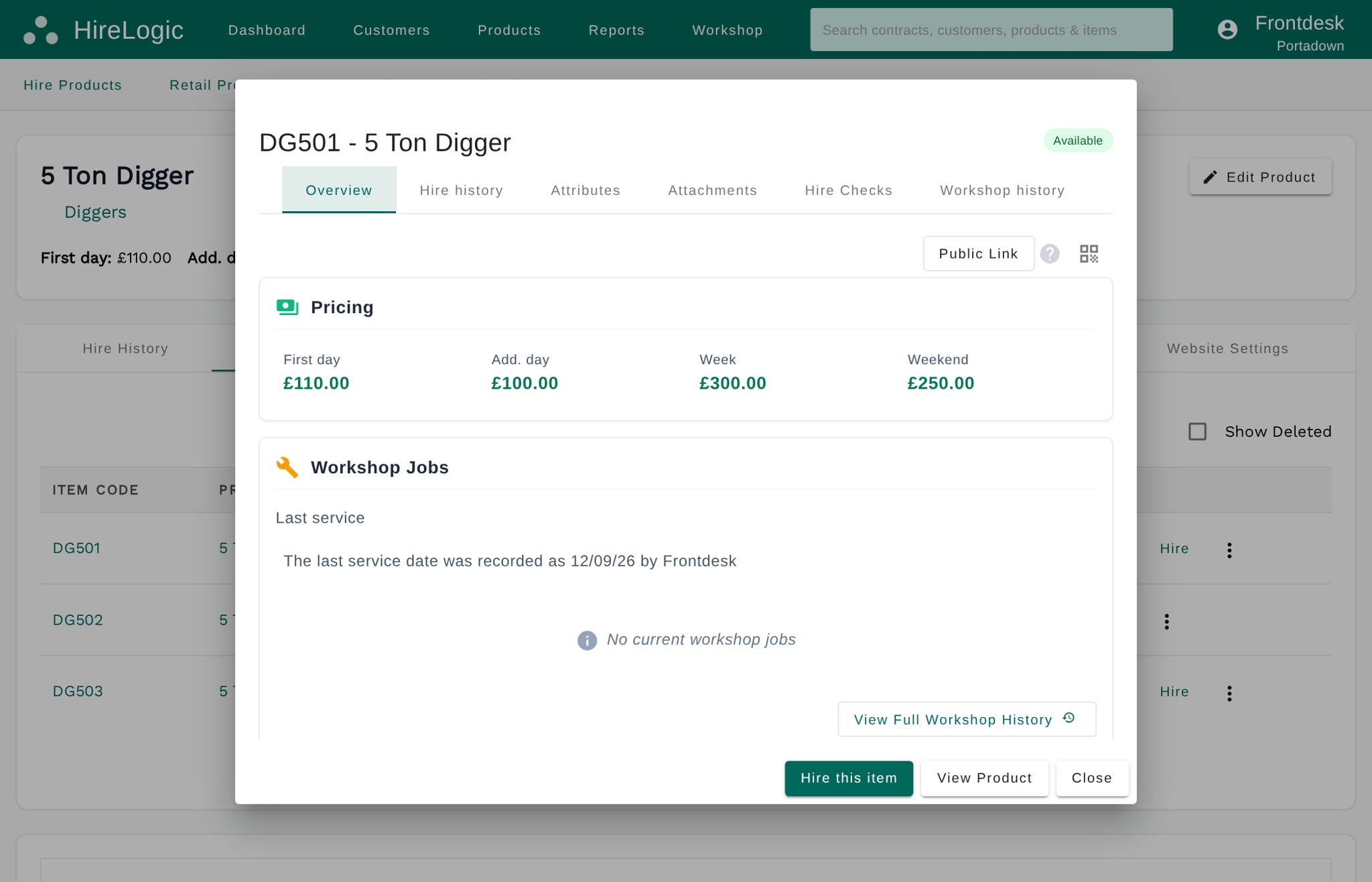
- The equipment profile can be accessed from the global search bar, or from clicking on the equipment code anywhere in the application, on hire contracts, on the dashboard, or on the product page that this equipment belongs to.
- Click on "Hire This Item."
- Select your customer.
- Specify the transaction type of Hire, and press Create.
- You’ll be directed to the contract screen with this equipment already added to the contract.
From the Combined Calendar
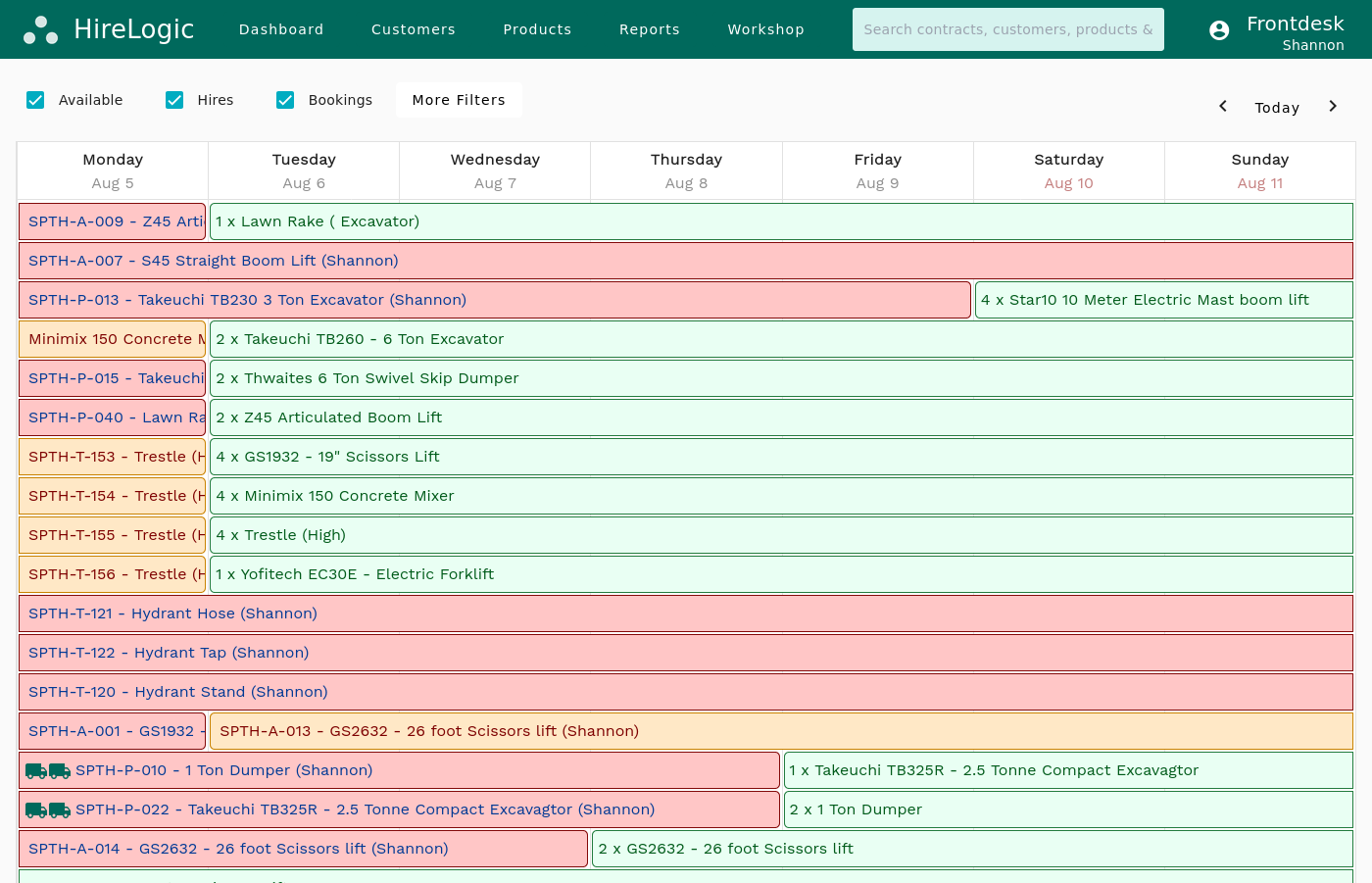
- The combined calendar can be accessed from the dashboard and gives you an overview of all your equipments availability, including current hires and future bookings.
- Locate the equipment you want to rent.
- Click on it, then select "Hire This Equipment."
- Choose your customer and create a new contract.
- You’ll then arrive at the contract screen, again with this item already added to the contract.
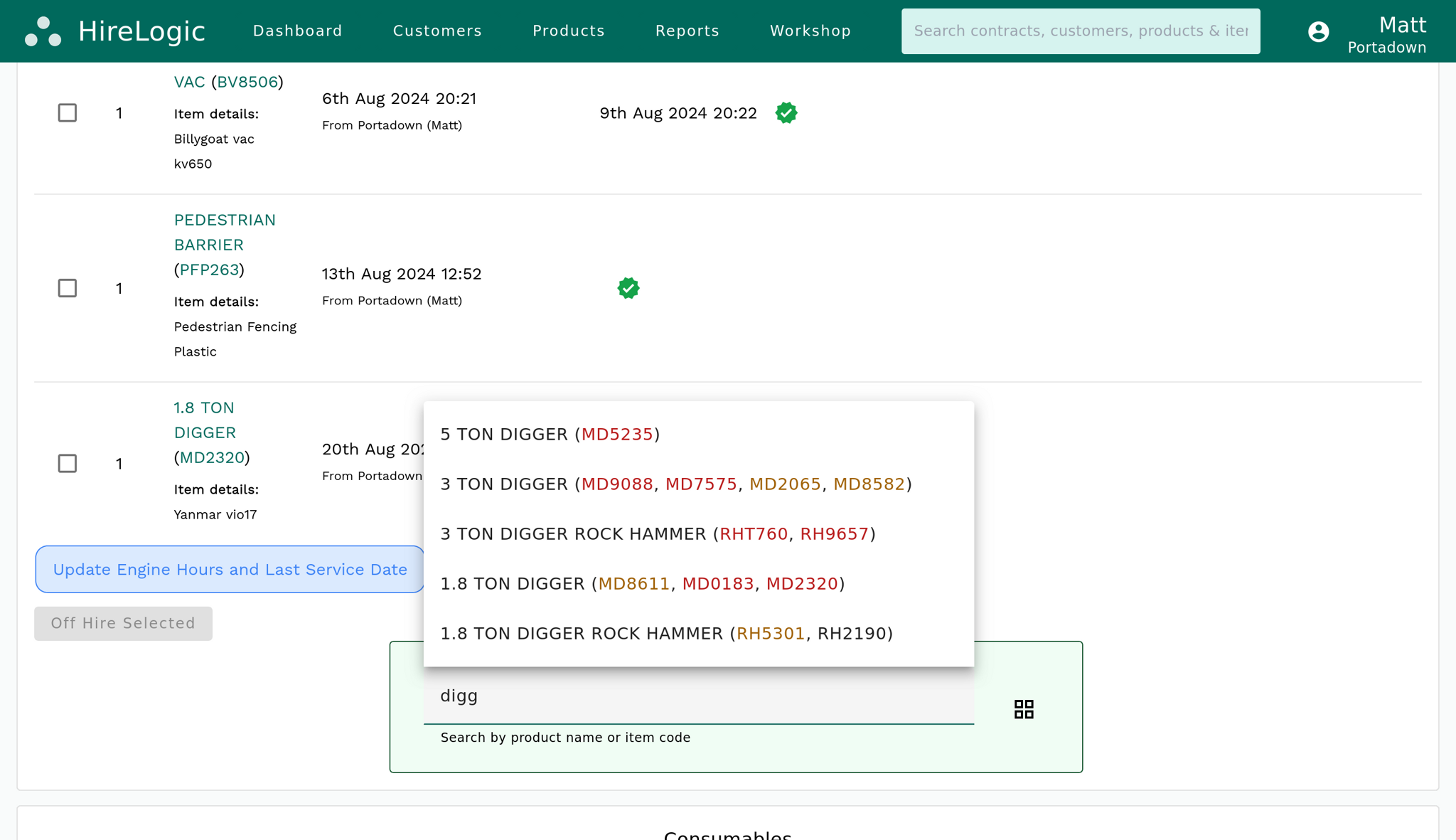
Adding Equipment
You can then add equipment to the contract by searching for it in the search bar, or by scanning the QR code or barcode. When searching the system indicates availability by the color of the text in the search results.
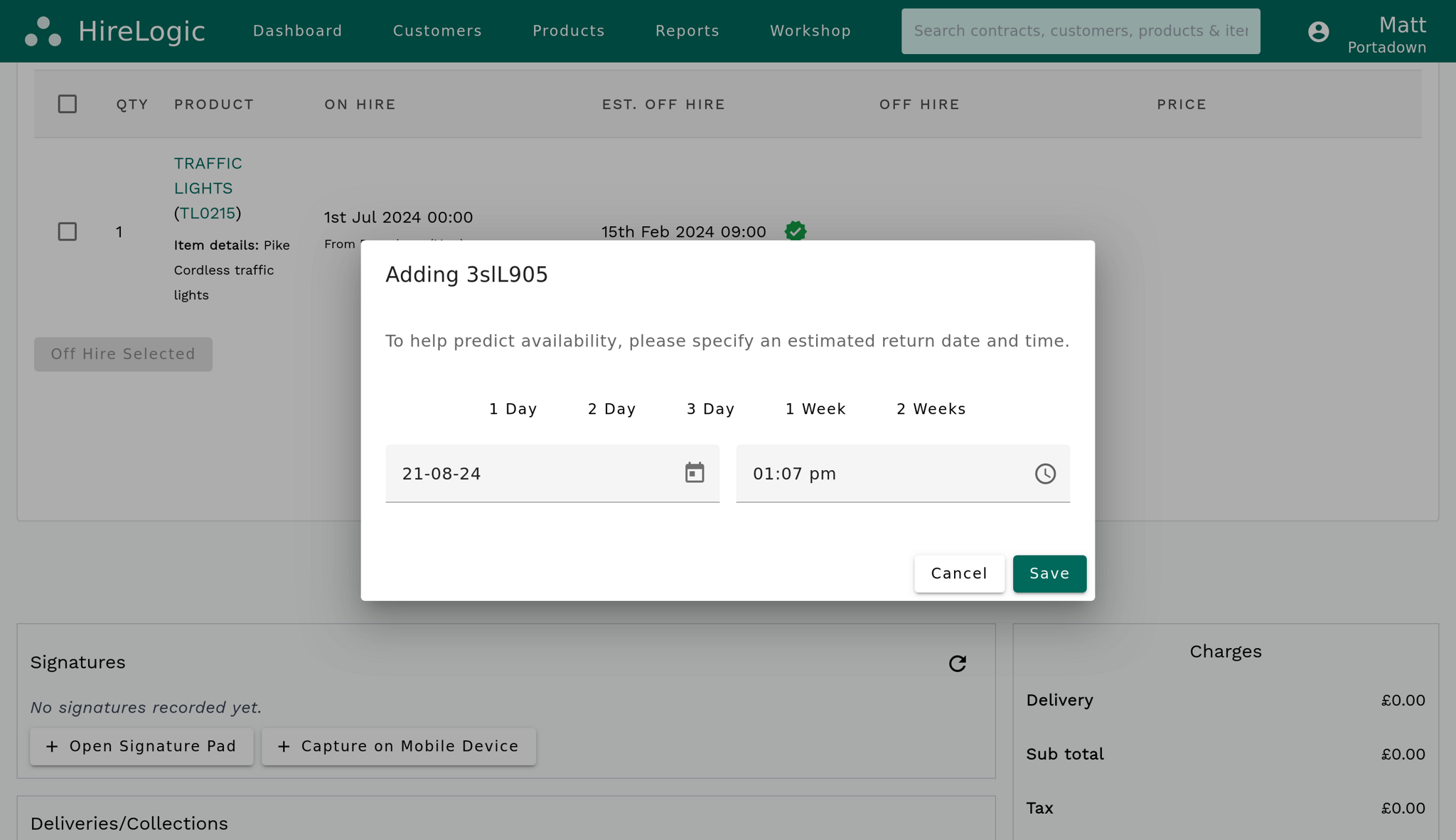
Return Date
Upon adding the equipment to the contract, you will be asked for an estimated return date. This lets the system know when the equipment will be available again. This step is optional and can be dismissed if the return date is unknown.
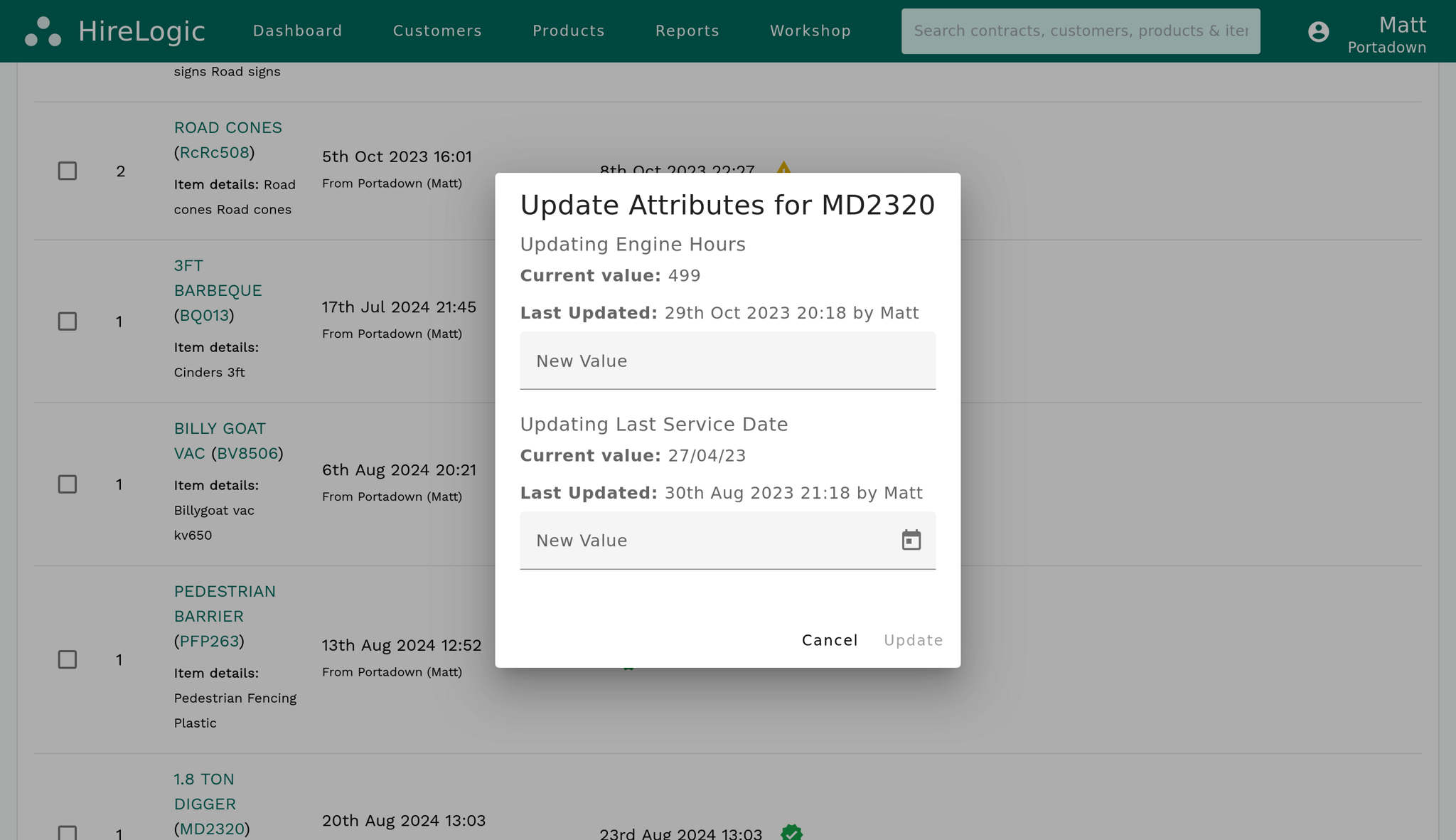
Update Attributes
Adding equipment to the hire contract might prompt you to update any associated attributes such as condition, meter readings, or other custom attributes you’ve set up.
Final Steps
Now you've added your equipment, you can add delivery or collection jobs to the contract, as well as capture signatures. More information on both of these fetaures can be found in the links below.
You can now proceed to print out the hire agreement, complete with the customers signtaure or with a box for the customer to manually sign.
It is also possible to download the agreement as a PDF, or indeed email it to the customer from right within HireLogic.
These methods are designed to give you the flexibility to create a hire contract from almost any screen in the application, so you can work the way that suits you best.
Want to find out more about how you can make your hire agreements as simple to create as this?
